Building a Snowflake REST API Connector for OneStream

If you’re integrating OneStream with a Snowflake data warehouse, you’ve got two options. You can use flat files — export from Snowflake, land the file somewhere, load it into OneStream. It works. It’s also manual, fragile, and doesn’t scale well when you’re pulling data from multiple Snowflake tables across different schedules.
The other option is to call Snowflake’s SQL REST API directly from a OneStream Connector business rule. No middleware. No file drops. The connector authenticates, executes a SQL query, and feeds the result set straight into OneStream’s Data Management import pipeline.
This post walks through how we built a production connector that does exactly that. We’ll cover the architecture, the authentication setup (using key-pair auth with OneStream Secrets), async query handling, parameterised SQL for workflow integration, and the patterns that make this reliable enough to run unattended at month-end.
Why the REST API and Not ODBC?
OneStream’s Connector business rule framework gives you a C# environment with full access to System.Net.Http. Snowflake’s SQL REST API (v2) accepts a SQL statement over HTTPS and returns the results as JSON. No ODBC driver installation, no DSN configuration on the OneStream server, no dependency on the Snowflake client tools.
This matters in cloud-hosted OneStream environments where you don’t control the server infrastructure and can’t install drivers. The REST API works anywhere you have outbound HTTPS access to *.snowflakecomputing.com.
The Architecture
The connector is a standard OneStream Connector business rule. When Data Management calls it, it follows this sequence:
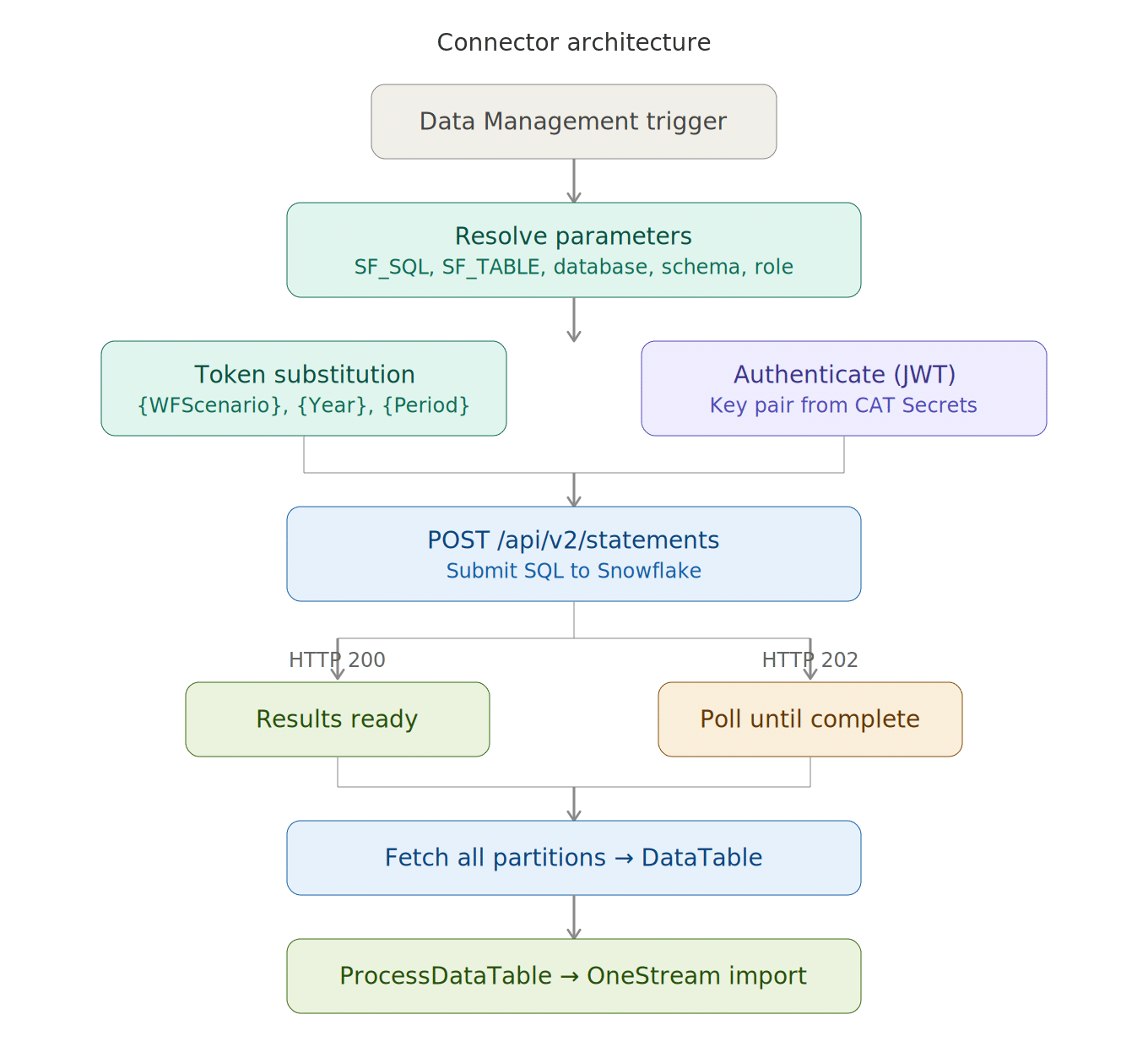
- Resolves query parameters (SQL, database, schema, warehouse, role) from DM parameters or hardcoded defaults
- Substitutes workflow tokens (
{WFScenario},{WFTime}) and custom tokens ({Year},{Period}) into the SQL - Authenticates to Snowflake using key-pair JWT authentication
- POSTs the SQL to
/api/v2/statements - Handles async execution (HTTP 202) by polling until the query completes
- Fetches multi-partition result sets if the data is large
- Builds a
DataTableand passes it toapi.Parser.ProcessDataTable()— OneStream’s import pipeline - Optionally exports a CSV debug file and a detailed log to the user’s file area
There’s also a separate Extender business rule that acts as a test wrapper — it lets you simulate DM parameters and run the connector outside of a workflow, which is essential for development and troubleshooting.
Authentication: Key-Pair with OneStream Secrets
This is the part that trips most people up, so we’ll cover it in detail.
Snowflake’s SQL REST API supports several auth methods. We use key-pair authentication because it’s the most secure for automated service accounts — no passwords stored anywhere, no OAuth infrastructure required.
Generating the Key Pair
On your workstation (not on the OneStream server), generate an RSA key pair:
# Generate encrypted private key (you'll be prompted for a passphrase)
openssl genrsa 2048 | openssl pkcs8 -topk8 -v2 aes-256-cbc -out rsa_key.p8

# Extract the public key
openssl rsa -in rsa_key.p8 -pubout -out rsa_key.pub
Register the public key with your Snowflake service account:
ALTER USER SVC_ONESTREAM SET RSA_PUBLIC_KEY='MIIBIjANBgkq...';
Storing Secrets in OneStream
The private key and passphrase need to be available to the connector at runtime, but they should never appear in source code. OneStream’s Cloud Administration Tools (CAT) has a Secrets manager designed for exactly this:
System → Administration → Cloud Administration Tools → Key Management → Secrets
Create two secrets:
SNOWFLAKE-PRIVATE-KEY— the base64 content of yourrsa_key.p8file (strip the BEGIN/END ENCRYPTED PRIVATE KEY lines, keep only the base64 block)SNOWFLAKE-PRIVATE-KEY-PASS— the passphrase you used when generating the key
In the connector code, the secrets are retrieved at runtime:
string privateKeyB64 = BRApi.Utilities.GetSecretValue(si, "SNOWFLAKE-PRIVATE-KEY");
string passphrase    = BRApi.Utilities.GetSecretValue(si, "SNOWFLAKE-PRIVATE-KEY-PASS");
No credentials in the business rule. No credentials in source control. The secrets are encrypted at rest in OneStream’s CAT store.
Generating the JWT
Snowflake’s key-pair auth requires a signed JWT (RS256). The connector generates this at runtime — no external libraries, just System.Security.Cryptography:
// Load the encrypted PKCS#8 key
byte[] keyBytes = Convert.FromBase64String(privateKeyB64);
RSA rsa = RSA.Create();
rsa.ImportEncryptedPkcs8PrivateKey(
    Encoding.UTF8.GetBytes(passphrase), keyBytes, out _);

// Fingerprint the public key (Snowflake requires this in the JWT issuer claim)
byte[] publicKeyDer = rsa.ExportSubjectPublicKeyInfo();
byte[] fingerprintBytes;
using (var sha256 = SHA256.Create())
    fingerprintBytes = sha256.ComputeHash(publicKeyDer);
string fingerprint = "SHA256:" + Convert.ToBase64String(fingerprintBytes);

// Build JWT claims
string issuer  = $"{account}.{user}.{fingerprint}";
string subject = $"{account}.{user}";
long iat = DateTimeOffset.UtcNow.ToUnixTimeSeconds();
long exp = iat + (59 * 60);  // 59 minutes (Snowflake max is 60)
The JWT header and payload are base64url-encoded and signed with the private key. The resulting token goes into the Authorization: Bearer header with an additional X-Snowflake-Authorization-Token-Type: KEYPAIR_JWT header.
One thing to watch: Snowflake expects the account identifier in the JWT iss and sub claims to be uppercase and to use the account locator format. If your account identifier includes a region suffix (like XY12345.ap-southeast-2.aws), strip everything after the first dot for the JWT claims.
Auth Fallback Chain
The connector tries each auth method in priority order and uses the first one that has credentials configured:
Private key + passphrase from CAT Secrets, JWT generated at runtime
Paste a token from SnowSQL or Python. Useful for testing — expires in ~60 minutes.
POSTs to a token URL with client ID and secret. For environments with existing OAuth infrastructure.
Pre-existing bearer token. Same limitation — it expires.
InvalidOperationExceptionFor production, use option 1. The others exist for testing and for environments where key-pair auth isn’t available.
Submitting Queries and Handling Async Execution
The SQL REST API call is a POST to /api/v2/statements. The connector builds the JSON request body manually (no Newtonsoft dependency in OneStream’s runtime) and includes the database, schema, warehouse, and role context.
Snowflake may return one of two responses:
- HTTP 200 — the query completed synchronously. The response body contains the results.
- HTTP 202 — the query is still running. The response body contains a
statementHandlethat you use to poll for completion.
For anything beyond a trivial query, expect 202. The connector polls GET /api/v2/statements/{handle} every 2 seconds, up to 90 attempts (3 minutes). If the query hasn’t completed by then, it throws a timeout exception.
if ((int)resp.StatusCode == 202)
{
    string statementHandle = ExtractJsonStringValue(responseBody, "statementHandle");
    responseBody = PollForCompletion(auth, statementHandle);
}
Each poll request needs the same auth headers as the original submit. If your JWT expires during polling (unlikely with a 59-minute lifetime, but possible for very long queries), you’ll get a 401 mid-poll.
Multi-Partition Result Sets
When Snowflake returns a large result set, it splits the data across multiple partitions. The first response (partition 0) includes a partitionInfo array that tells you how many partitions there are. The connector detects this and fetches each additional partition:
int totalPartitions = CountPartitions(responseBody);
if (totalPartitions > 1)
{
    for (int p = 1; p < totalPartitions; p++)
    {
        var partitionRows = FetchPartition(auth, statementHandle, p);
        allRows.AddRange(partitionRows);
    }
}
Each partition is fetched via GET /api/v2/statements/{handle}?partition={n}. The column metadata only appears in partition 0 — subsequent partitions contain only the data arrays.
Parameterised SQL and Token Substitution
The connector supports two types of runtime token substitution in the SQL statement. This is what makes it useful for production workflows rather than just ad-hoc queries.
Workflow Tokens
When the connector runs inside a OneStream Data Management workflow, it can resolve the current workflow context — scenario, time period, and profile — directly from SessionInfo:
// {WFScenario} resolves from si.WorkflowClusterPk.ScenarioKey
// {WFTime}     resolves from si.WorkflowClusterPk.TimeKey
// {WFProfile}  resolves from si.WorkflowClusterPk.ProfileKey
So a SQL statement like SELECT * FROM GL_ACTUALS WHERE SCENARIO = '{WFScenario}' AND PERIOD = '{WFTime}' automatically resolves to the correct scenario and period when the workflow runs. No manual parameter entry each month.
Custom Tokens
For parameters that don’t come from the workflow context, the connector supports arbitrary {TokenName} substitution. Values are set via globals.SetObject() in the DM sequence step or test wrapper:
// DM step sets: globals.SetObject("Year", "2026");
// SQL contains: WHERE FISCAL_YEAR = '{Year}'
// Result:       WHERE FISCAL_YEAR = '2026'
The token resolver uses a regex to find all {TokenName} patterns in the SQL, skips the reserved workflow tokens, and replaces any match that has a corresponding value in globals. Unresolved tokens are left as-is, which makes debugging easier — you can see in the log which tokens resolved and which didn’t.
The Test Wrapper
The test wrapper is a separate Extender business rule that lets you run the connector outside of a Data Management workflow. This is critical during development — you don’t want to trigger a full DM workflow every time you want to test a SQL change.
The wrapper simulates DM parameters by setting globals directly:
// Test: table shortcut
globals.SetObject("SF_TABLE", "GENERAL_LEDGER");

// Test: full SQL with custom tokens
globals.SetObject("SF_SQL",
    "SELECT * FROM GL WHERE FISCAL_YEAR = '{Year}' AND PERIOD = {Period}");
globals.SetObject("Year", "2026");
globals.SetObject("Period", "3");
It calls the connector’s BuildResultDataTable() method, exports the results as CSV, saves the log file, and reports the row count. You can run different test scenarios by commenting and uncommenting parameter blocks — the wrapper code has seven pre-built test configurations.
Debug and Logging
The connector writes a detailed timestamped log to a text file in the user’s Documents area in OneStream. Every significant step is recorded — auth method used, SQL executed, response codes, partition counts, row counts, and timing.
Three switches control the output: ExportCsv (CSV debug file), ExportLog (the text log), and LogInfoToErrorLog (a summary entry in OneStream’s ErrorLog for quick visibility). In production, you might turn off the CSV export but keep the log and ErrorLog pointer.
Setting It Up in Your Environment
If you want to build this for your own Snowflake-to-OneStream integration, here’s the sequence:
Create a service account user, generate the RSA key pair, register the public key with the user, and grant the user read access to the tables you need.
Store the private key (base64) and passphrase as Secrets in Cloud Administration Tools → Key Management → Secrets.
Create the Connector business rule and the Extender test wrapper. Update the CONFIG section with your account identifier, service account username, secret names, and default database/schema/role. Run the test wrapper first to confirm connectivity and auth.
Create a DM sequence step that references the Connector rule. Set DM parameters (SF_SQL, SF_TABLE, etc.) on the step to control what data gets pulled. Wire it into your workflow.
The whole setup — from key generation to first successful data pull — can be done in an afternoon if you have the Snowflake permissions sorted out. The part that takes longer is the downstream work: mapping the Snowflake columns to OneStream dimensions, building the transformation rules in Data Management, and validating the loaded data against your source.
Need Help with OneStream?
James & Monroe builds OneStream integrations for organisations running multi-ERP environments with Snowflake as the data hub. If you’re planning a Snowflake-to-OneStream integration — or struggling with an existing file-based approach — our team can help. We can help you adapt this integration to your environment.