Setup & Configuration of EPM Integration Agent as a Windows service

Configuring the EPM Integration Agent as a Windows service is a critical step for organisations running OneStream in production environments. Running the agent as a service ensures it starts automatically when the server boots, provides better reliability for scheduled data integrations, and simplifies ongoing administration. This guide walks through the complete setup, configuration, and management of the EPM Integration Agent as a Windows service.
The EPM Integration Agent can be installed as a Windows service. This enables you to run the agent in using its’ own Windows session. This is especially beneficial when the windows servers are restarted we can automatically start the EPM agent service. Further, as needed, we can additionally pause and manually restart the EPM agent windows service. On Linux computers, the EPM Integration Agent is started as a background process.
Please note the following:
- The agent name must be specified in the params.ini file. It cannot be passed as a parameter in the Install command.
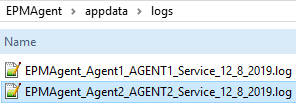
- During execution the service logs are present in the agents EPM_APP_DATA_HOME\logs folder with the name <serviceName>_<agent_name>_Service_<date>.log. This log contains all the console.
- To display help, use the option EPMAgentService.exe -help or double click EPMAgentService.exe in Windows Explorer.
- When installed, you can start and stop the service as a Windows service from the Windows services console.
- Multiple agent services with a different service name, agent name and port can be created and run simultaneously.
- Always check the log file after starting the service.
To setup up the Windows Service:
- Open Command Prompt as an Administrator. Type below command and hit enter.

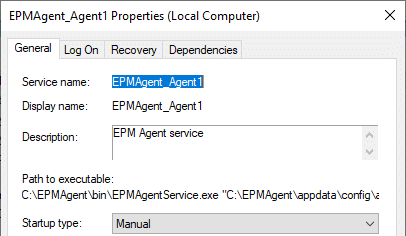
- You will see the service created in service.msc as below.

- The status for the agent will be stored in the log under the path and filename.
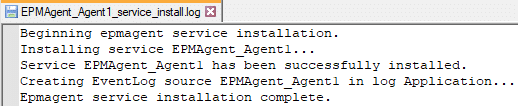
If successful, the agent should be available as a Windows service.
The display name will be generated with same as the service name. The service is set to manual and the account which runs the service will be local system, so you may want to update the service configuration to fit your requirements.
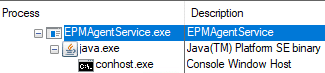
- Once the agent has been started, there will be “EPMAgentService.exe” as a process which will have the agent Java process running as a child process.
- It is possible to run multiple agents as Windows services on the same machine.


Multiple services will now be available.

- There will be a separate agent log for each Windows service.
To change the dislay name of the service:
- If you want to update the display name for the Windows service, this can be achieved easily through command line.

The display name will be updated.

To remove the service:
- To remove an agent as a Windows service, the following syntax can be used:EPMAgentService -uninstall <windows_service_name>


A log will have been generated with further details.

Best Practices for EPM Agent Service Management
When running the EPM Integration Agent as a Windows service in a production environment, consider the following recommendations:
- Service Account: Configure the service to run under a dedicated service account rather than Local System. This provides better security and allows the agent to access network resources with appropriate permissions.
- Monitoring: Set up Windows Event Log monitoring to alert your team if the EPM agent service stops unexpectedly. This ensures minimal disruption to scheduled data integration processes.
- Log Rotation: The service logs in the EPM_APP_DATA_HOME\logs folder can grow significantly over time. Implement a log rotation or cleanup strategy to manage disk space.
- Recovery Options: Configure the Windows service recovery options to automatically restart the agent on the first and second failure. This can be set via the Services console under the Recovery tab.
Links
Need Help with OneStream?
James & Monroe specialises in OneStream implementation and support. Whether you need assistance with EPM Integration Agent configuration, data integration workflows, or a full OneStream deployment, our experienced consultants are ready to help.